

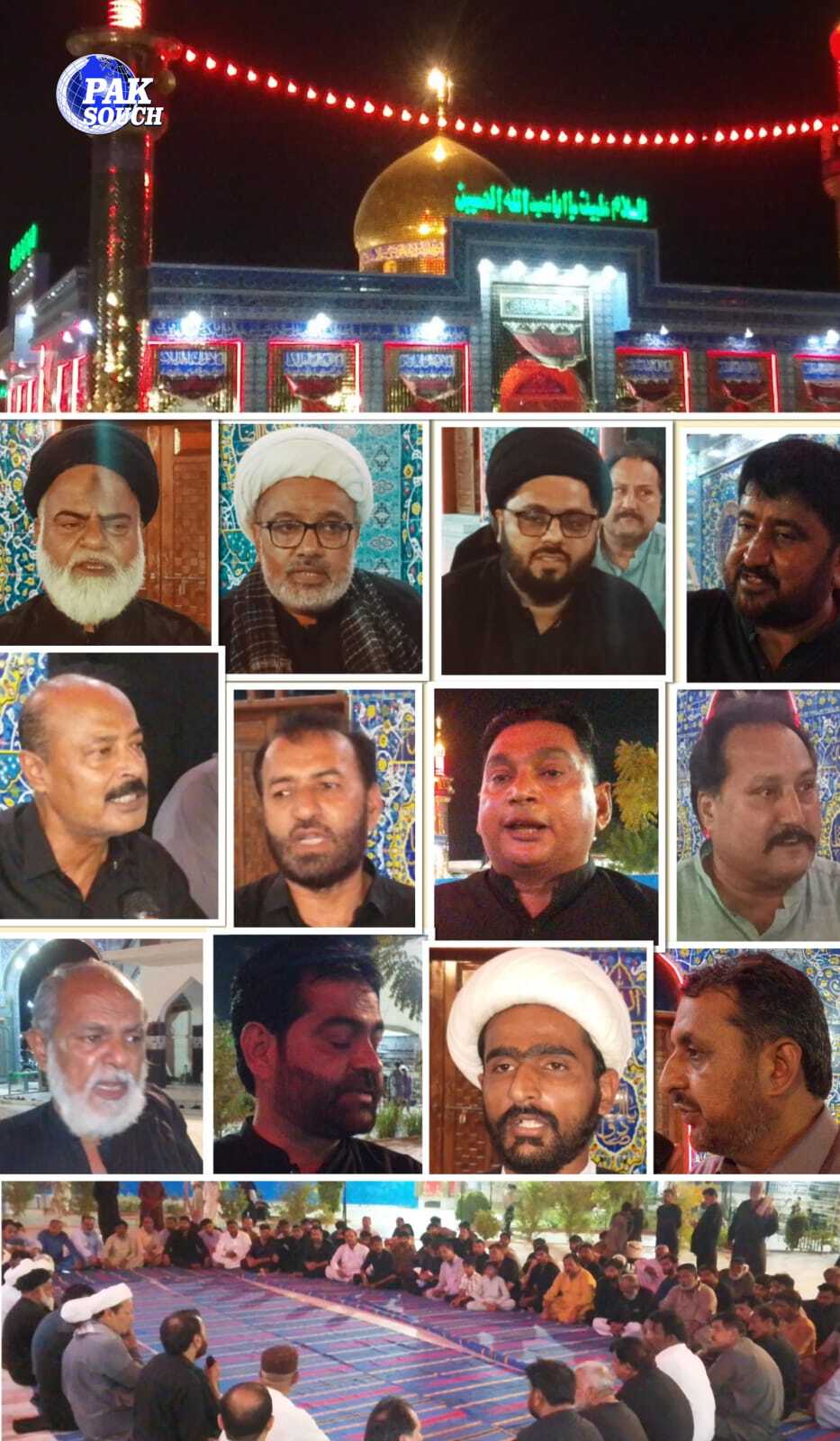
RANIPUR: A key meeting was held at Wadi-e-Zahra (SA) in Ranipur to finalise arrangements for the annual Arbaeen-e-Hussaini gathering, scheduled to take place on 18, 19 and 20 Safar. The meeting was chaired by Haji Zawar Ghulam Hussain Mallah, founder of Wadi-e-Zahra, and attended by Shia religious scholars, representatives of religious organisations, mourning associations, scout groups, caretakers of Imambargahs and community members.
Addressing the gathering, Haji Zawar Ghulam Hussain Mallah said that, as in previous years, hundreds of thousands of devotees of Imam Hussain (AS) from different parts of the country are expected to visit Wadi-e-Zahra during Arbaeen. He said serving the pilgrims is a collective responsibility and called for comprehensive arrangements to ensure their comfort and safety.
He stressed the need to provide proper accommodation, medical camps, food distribution, drinking water facilities, parking, sanitation, traffic management and security so that pilgrims could perform their religious observances without inconvenience.
Representatives of various mourning associations and Imambargahs assured the organisers of their full cooperation and pledged to fulfil their responsibilities during the Arbaeen commemorations while ensuring the best possible services for visitors.
On security arrangements, representatives of Payam-e-Wilayat Scouts Pakistan Sukkur Division, including both male and female scout wings, as well as Jinnah Scouts, assured participants that volunteer teams would remain on duty to assist pilgrims, manage traffic, provide guidance and respond to emergencies. They added that Sindh Police would also be present to strengthen security measures.
Speaking at the meeting, Allama Qibla Mohsin Ali Naqvi, Senior Vice President of the Shia Ulema Council Pakistan, Sindh, said Arbaeen is not only a religious gathering but also a symbol of unity, brotherhood, sacrifice and humanity. He urged religious scholars to ensure their participation in the event, guide pilgrims and promote the message of Imam Hussain (AS).
The meeting was attended by several religious and community leaders, including Maulana Liaqat Ali Qumi, Maulana Ali Gul Bhambhro, Maulana Darban Ali Solangi, Maulana Ghulam Haider Haideri, Maulana Muhammad Hafeez Solangi, Sajid Ali Karbalai of Payam-e-Wilayat Scouts Pakistan, Asgharia Organisation Pakistan President Singhar Ali Chandio, Ustad Ghulam Asghar Jafri, Syed Piyas Ali Shah, Syed Zawar Shah, Ghulam Asghar Wassan, and other organisers and volunteers.
Participants discussed the formation of various management committees, volunteer deployment, medical assistance, distribution of food and drinking water, sanitation, traffic management and security arrangements, agreeing on a coordinated strategy for the event.
The meeting concluded with special prayers for Pakistan’s peace and stability, unity among the Muslim Ummah, and the safety of all pilgrims. Niaz-e-Imam Hussain (AS) was also distributed among participants.
About The Author